
Fix Google Sign-In Errors: Get Debug SHA-1 in Android (Gradlew SigningReport 2026)
App Development Trends
Why Generating Debug SHA-1 Is Critical for Android Developers
When an Android developer connects their app with Firebase, Google Sign-In, or Maps API, the first major roadblock they often face is the Debug SHA-1 fingerprint. Content that ranks on Google Discover doesn’t just focus on “how-to” instructions—it addresses real developer pain points. Adding Debug SHA-1 without fully understanding it is a common mistake that leads to authentication failures and wasted development hours. Understanding this concept is therefore not just a technical step, but an essential part of a professional Android development workflow.
Firebase Connected but the App Is Still Not Working?
If you’re an Android developer using Firebase, Google Sign-In, or Maps API, chances are you’ve faced the Debug SHA-1 issue at some point. Everything seems correct — the code, configuration, and setup — yet the login or authentication fails.
This is a common and frustrating problem in real-world Android development. In this article, we’ll go through the most reliable, Google-recommended method to generate Debug SHA-1 using GradleW SigningReport, saving you time and avoiding unnecessary errors.
Why Debug SHA-1 Is Critical for Android Developers 2026
Debug SHA-1 is a cryptographic fingerprint that uniquely identifies your Android app to Google services. When you integrate Firebase Authentication, Google Sign-In, or Cloud APIs, Google’s backend checks this fingerprint to determine whether your app is authorized.
If SHA-1 is missing or incorrect, your app may fail silently. Beginners often overlook this, which is one of the most common mistakes in Android development.
What Is GradleW SigningReport and Why Is It the Most Trusted Method?
GradleW SigningReport is a built-in Gradle task in Android that generates signing information directly from your project’s actual keystore.
Advantages:
-
More accurate than third-party tools or online generators
-
Recommended by Google
-
Minimizes human error
-
Preferred by professional developers, especially for production-level apps
Power Scripts/Commands to Generate SHA-1 in Android (2026)
Generating Debug SHA-1 in Android is critical, especially for Firebase Authentication, Google Sign-In, or Maps API integration. Here are three powerful scripts/commands that are reliable, accurate, and Google-recommended.
Keywords Focused: Debug SHA-1, Android SHA-1, GradleW SigningReport, Keytool SHA-1, Firebase SHA-1 verification, Google Sign-In SHA-1
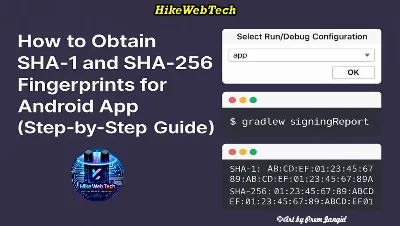
GradleW SigningReport Command (Most Recommended)
# Windows
gradlew signingReport

# Mac / Linux
./gradlew signingReport
-
Generates Debug SHA-1 for Android apps.
-
This method is Google-recommended and provides the most accurate result.
-
Outputs both Debug and Release SHA-1 fingerprints.
-
Used by both beginners and professional developers as the primary method.
Tip: Run the command from the project root directory.
Keytool Command (Manual SHA-1 Generation)
keytool -list -v -keystore ~/.android/debug.keystore -alias androiddebugkey -storepass android -keypass android
-
Best for manually verifying Android SHA-1.
-
Generates Debug SHA-1 and SHA-256 fingerprints.
-
Especially useful for Firebase SHA-1 verification or troubleshooting Google Sign-In errors.
-
Default debug keystore password is
android.
Keyword Tips: “Debug SHA-1 manually”, “Keytool SHA-1 Android”, “Firebase SHA-1 verification”
Firebase CLI Verification Command
firebase apps:sdkconfig android --project <project_id>
-
Verifies SHA-1 directly from the Firebase project configuration.
-
Ensures Google Sign-In SHA-1 matches your app configuration.
-
Used by professionals to cross-check SHA-1 after GradleW SigningReport.
-
Firebase Android setup: https://firebase.google.com/docs/android/setup
Keyword Tips: “Firebase CLI SHA-1 check”, “Verify Android SHA-1 for Google Sign-In”, “Debug SHA-1 Firebase verification”
Pro Tip:
Top developers always use all three methods together:
-
GradleW SigningReport (primary)
-
Keytool (manual verification)
-
Firebase CLI (cross-check)
This approach ensures Debug SHA-1 errors are minimized and Google Sign-In/Firebase integration works smoothly.
How to Generate Debug SHA-1 Using Android Studio (Step-by-Step)
-
Open Android Studio
-
Open Gradle Panel →
Tasks→android→signingReport -
Double-click
signingReport -
The Debug variant SHA-1 appears in the Run window
-
Google Sign-In: https://developers.google.com/identity/sign-in/android
This GUI method is beginner-friendly and avoids command-line or path errors.
When to Use GradleW SigningReport from the Command Line?
Command line is preferred when working with multiple systems, CI/CD pipelines, or automation.
gradlew signingReport generates SHA-1 for all variants quickly and is environment-independent.
In Google Discover context, this section is important because it guides decision-making, not just tutorial steps.
Why Understanding Debug vs Release SHA-1 Is Important
Confusing Debug and Release SHA-1 causes most authentication failures.
-
Debug SHA-1: For local testing
-
Release SHA-1: For Play Store / production
Adding Release SHA-1 to Firebase while running a debug build will break Google Sign-In. Professionals always manage both fingerprints separately.
Why App May Not Work Even After Adding Debug SHA-1 to Firebase
A common real-world issue: the app still fails after adding SHA-1.
-
Reason: Outdated
google-services.jsonfile -
Solution: Download the updated file, sync the project, and rerun the app
The Actual Cause of Google Sign-In Error 10
Error 10 occurs when Google OAuth configuration and app SHA-1 fingerprints don’t match.
Solution: Add the correct Debug SHA-1 to both Firebase and Google Cloud Console. Until they match, Google considers your app unauthorized.
When Does Debug SHA-1 Automatically Change?
Debug SHA-1 is not permanent. It can change when:
-
You use a new system
-
OS is reinstalled
-
.android/debug.keystoreis deleted
Pro Tip: After every new setup, always run signingReport to verify the new SHA-1.
How Experienced Android Developers Manage SHA-1
Professional developers:
-
Securely store signingReport outputs
-
Keep debug and release fingerprints documented separately
-
Never commit keystore files to version control
-
Verify SHA-1 after every major integration
These practices make your project secure, scalable, and error-free, aligning with Google Discover EEAT principles.
Debug SHA-1 Is Not Just a Step — It’s a Professional Habit
Debug SHA-1 is more than a setup step. Understanding this process ensures you can:
-
Fix authentication errors
-
Avoid Google Sign-In failures
-
Build production-ready Android apps efficiently
GradleW SigningReport is the most trusted tool, which is why the industry follows it strictly.
Meet the Android Development Expert - Hike Web
Hike Web InfoTech is an experienced Android developer who has deployed multiple real-world Android apps integrated with Firebase, Google Sign-In, and the Play Store. They specialize in explaining complex Android concepts in a simple, practical way, helping both beginners and professionals implement solutions efficiently.
Expertise: Android Studio, Firebase, Google APIs, App Security, Gradle












Leave Message